
Set-up guide
Getting set up, in the right order.
Nine steps, about half an hour all up. Do them in this order and TTM Control works properly from your very first job.
Step 1
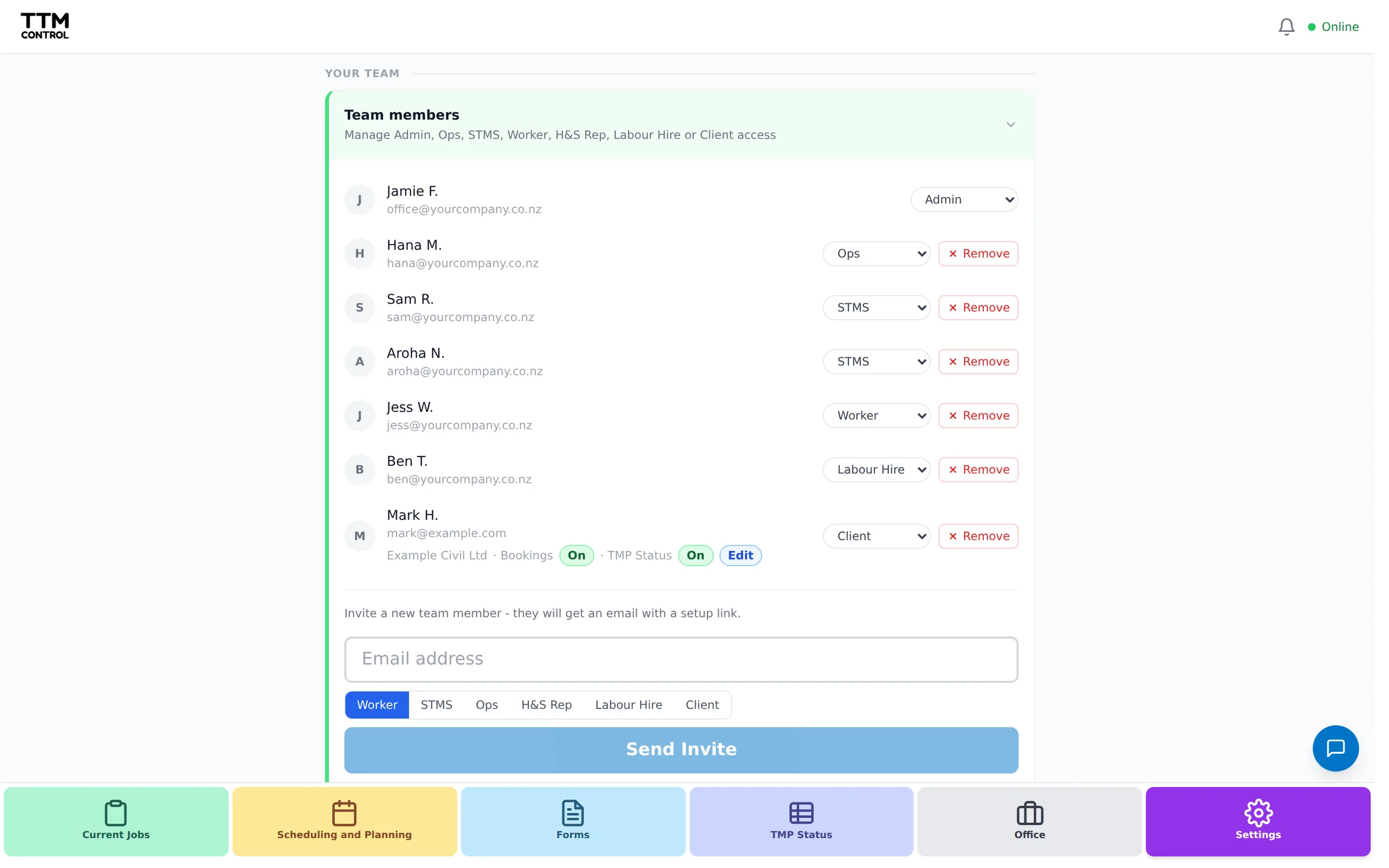
Add your team
Settings, then Team members
Invite every team member who needs a login. Use the email address they go on job sheets with - that is how the system knows which jobs to show them on their phone.
Tip: Get the roles right between STMS and TC / CP. The STMS on a job runs and signs off its paperwork. A TC / CP sees their jobs and can add to them, but cannot override the STMS’s work.
Step 2
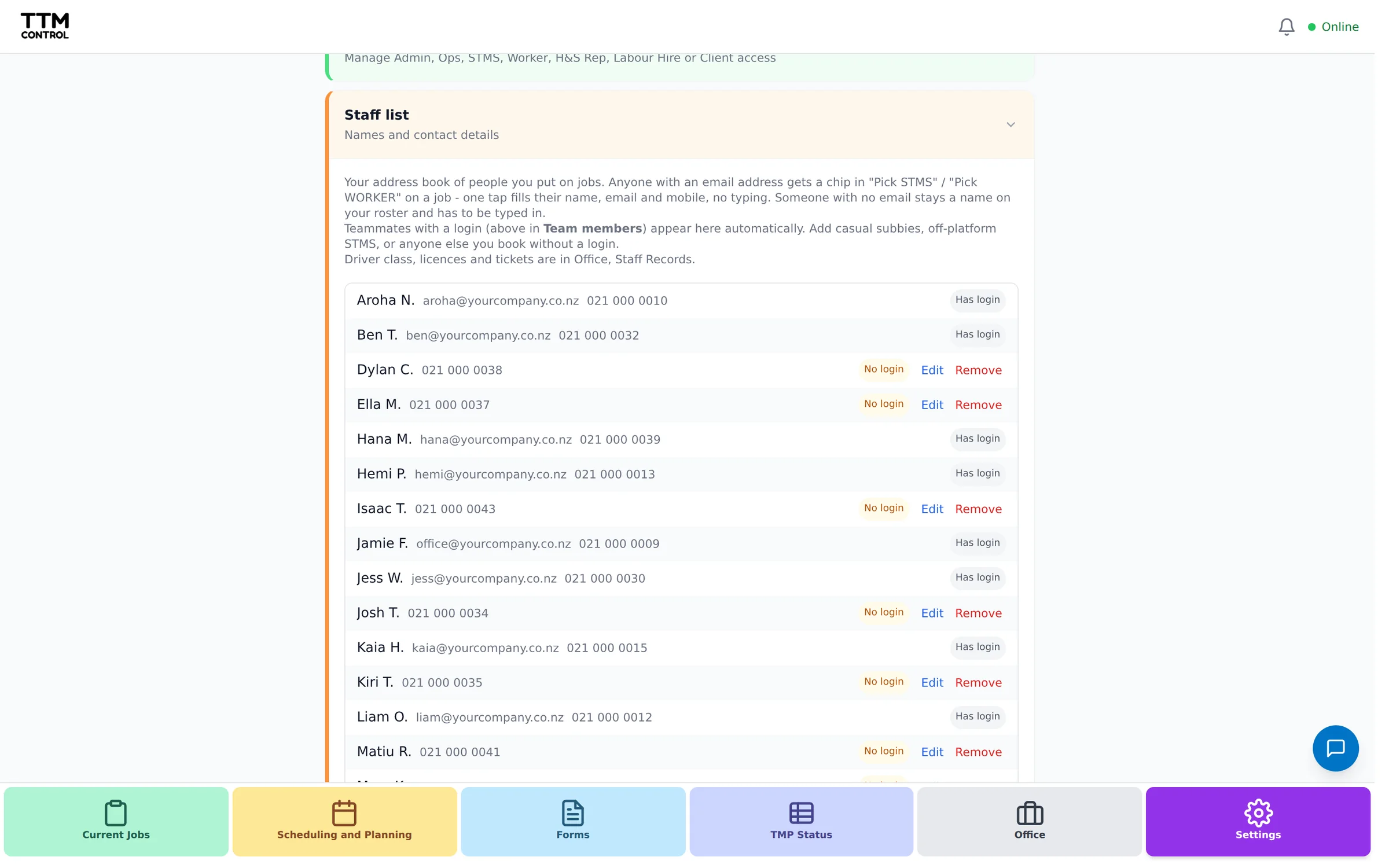
Top up your staff list
Settings, then Staff list
Your team from step 1 lands in here automatically. Just add the extras: people you put on jobs who do not need a login, like casual subbies. Together they fill the one-tap Pick STMS and Pick Worker buttons on every job sheet.
Tip: If everyone at your company gets a login, this step does itself and you can skip it.
Step 3
Turn on notifications
Settings, then App notifications
On each phone, so the crew gets job and roster updates. Free.
Step 4
Choose your notification preferences
Settings, then Notification preferences
Pick which emails and app pings each person gets. Everything starts on, so just untick what you do not want.
Step 5
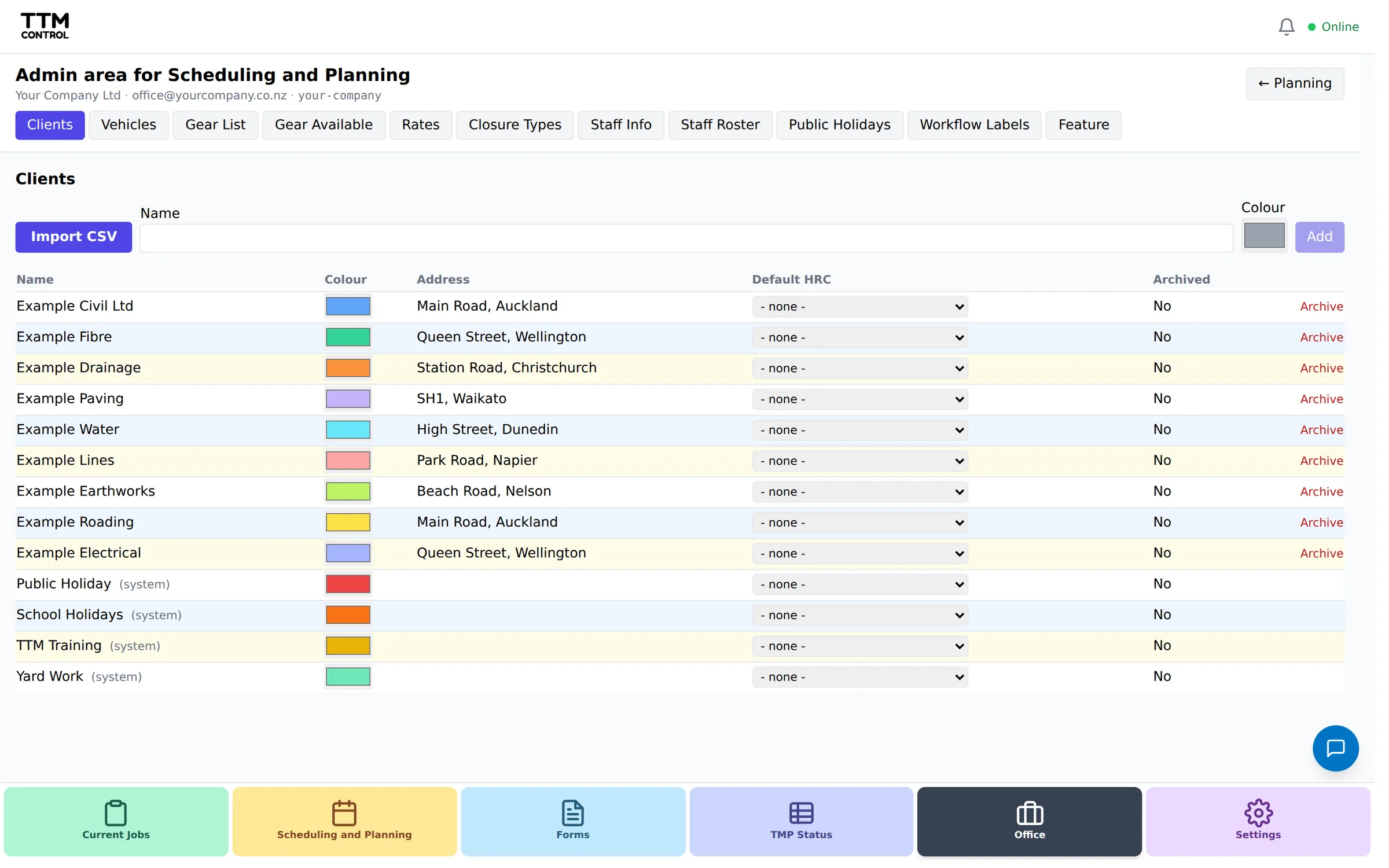
Turn on Scheduling and Planning, then load your lists
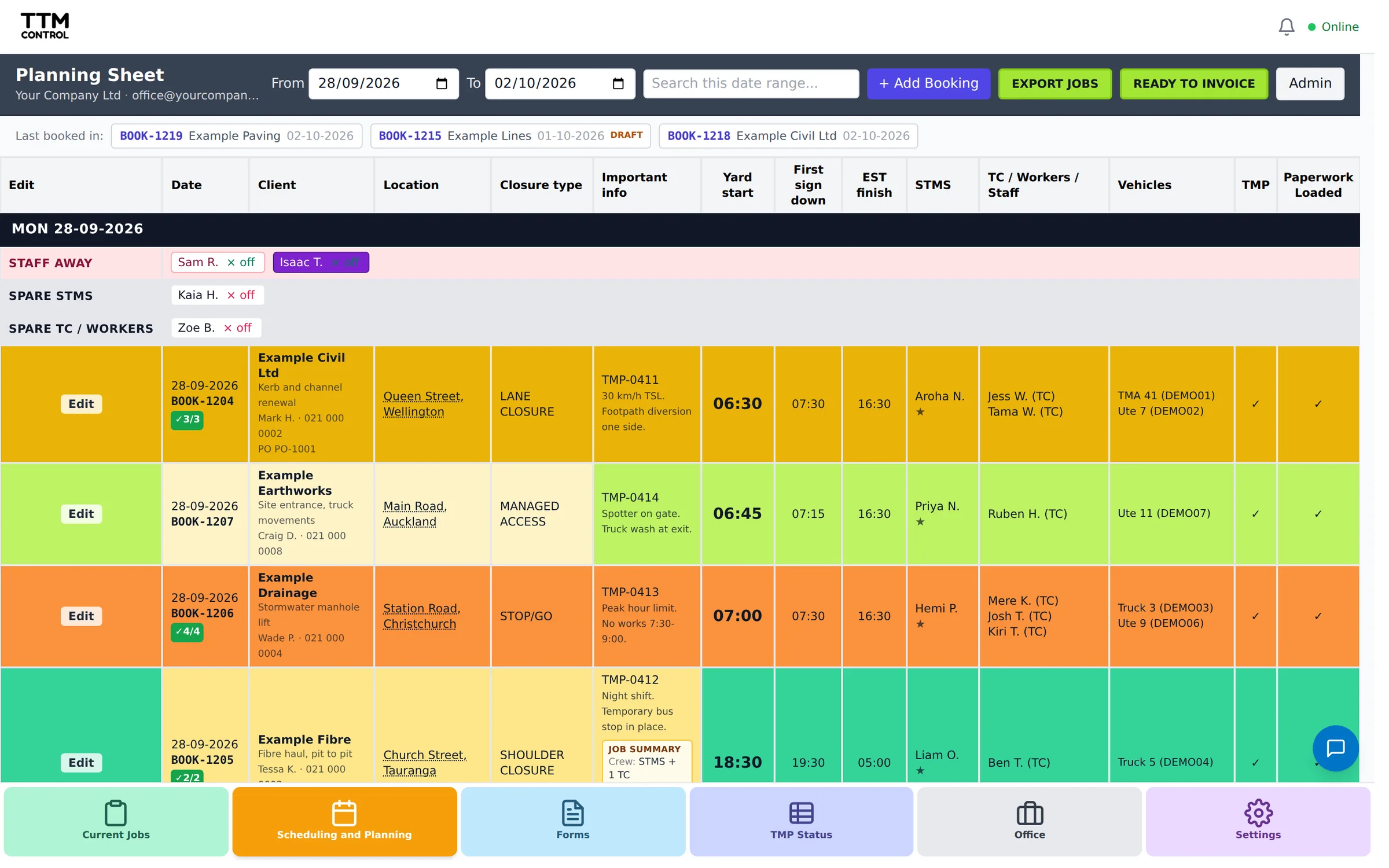
ttmcontrol.co.nz/planning, then Admin
Open the planning page and press the enable button (owner login only) - that unlocks the planning calendar, vehicles and staff records. Then in Admin: clients first - a booking needs one - then your vehicles with rego and WOF dates so the expiry reminders work, then gear and rates.
Tip: You can import clients from a CSV instead of typing them one by one.
Step 6
Set up Xero, if you use it
Settings, then Integrations
Connect your Xero once and a confirmed booking can be pushed straight to a draft invoice, so the office never retypes a job.
Step 7
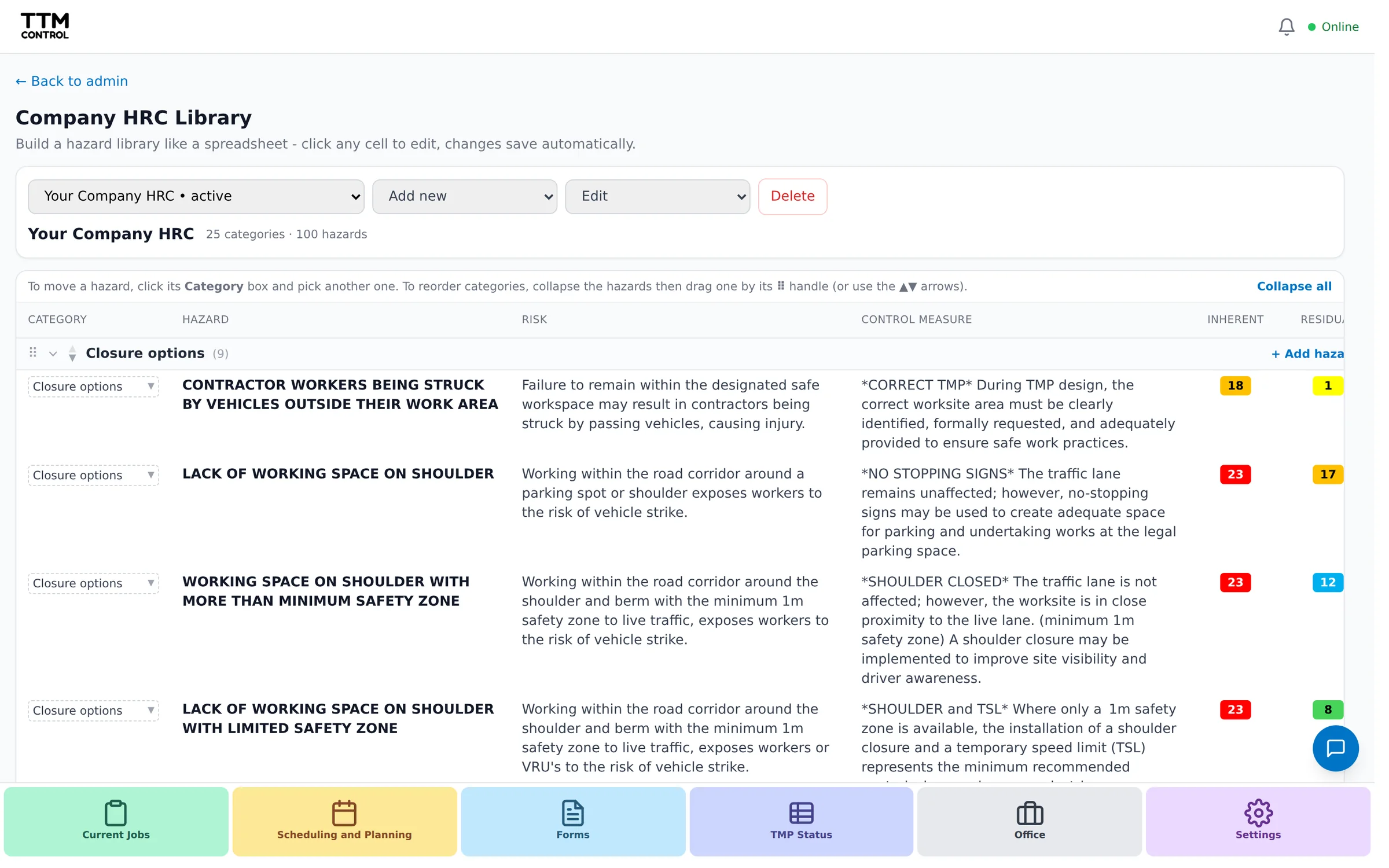
Set up your hazard library
Settings, then HRC Library
The hazards, risks and controls your crew picks from on every job. Start your own company library and fill it in on screen, or, if your company has AI turned on, upload your full company assessment from a spreadsheet. The crew can also add one-off hazards on the job itself.
Tip: A company library means your risk codes and control wording stay consistent on every job sheet.
Step 8
Book a job and send it to paperwork
Planning, then Add Booking
Fill in the client, site, dates, crew and vehicles. Confirm the booking and the paperwork lands on the crew’s job list on its own.
Step 9
Start your first job
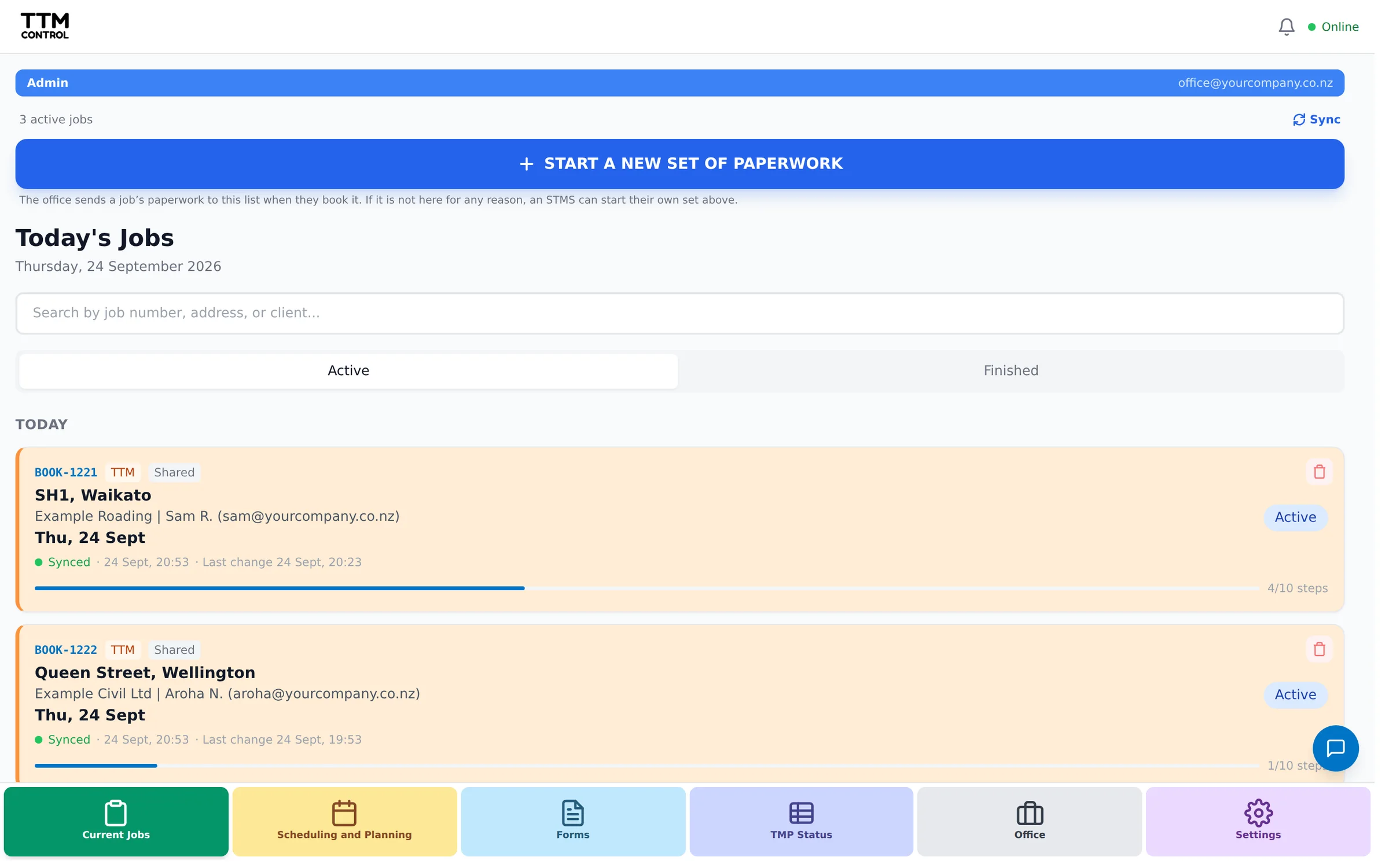
Current Jobs
Use the paperwork your booking made, or press START A NEW SET OF PAPERWORK to start one on the spot. With the steps above done, your people, hazards and vehicles are all one tap away.
Tip: There is a read-only demo job pinned at the top so you can see what a finished one looks like.
Once you are up and running.
- Take the guided tour, it lives in Settings
- Works offline on site and syncs back on its own
- Each person can link their own TTM Evidence in Settings so inductions flow across
- Stuck? Use the blue feedback button, a person reads every message