
Booking and scheduling
TTM booking and crew scheduling, in one place.
Take the job, put the right crew and trucks on it, and hand your STMS the paperwork, without retyping it into a spreadsheet, a whiteboard and a group text.
Booking
One form for the whole job
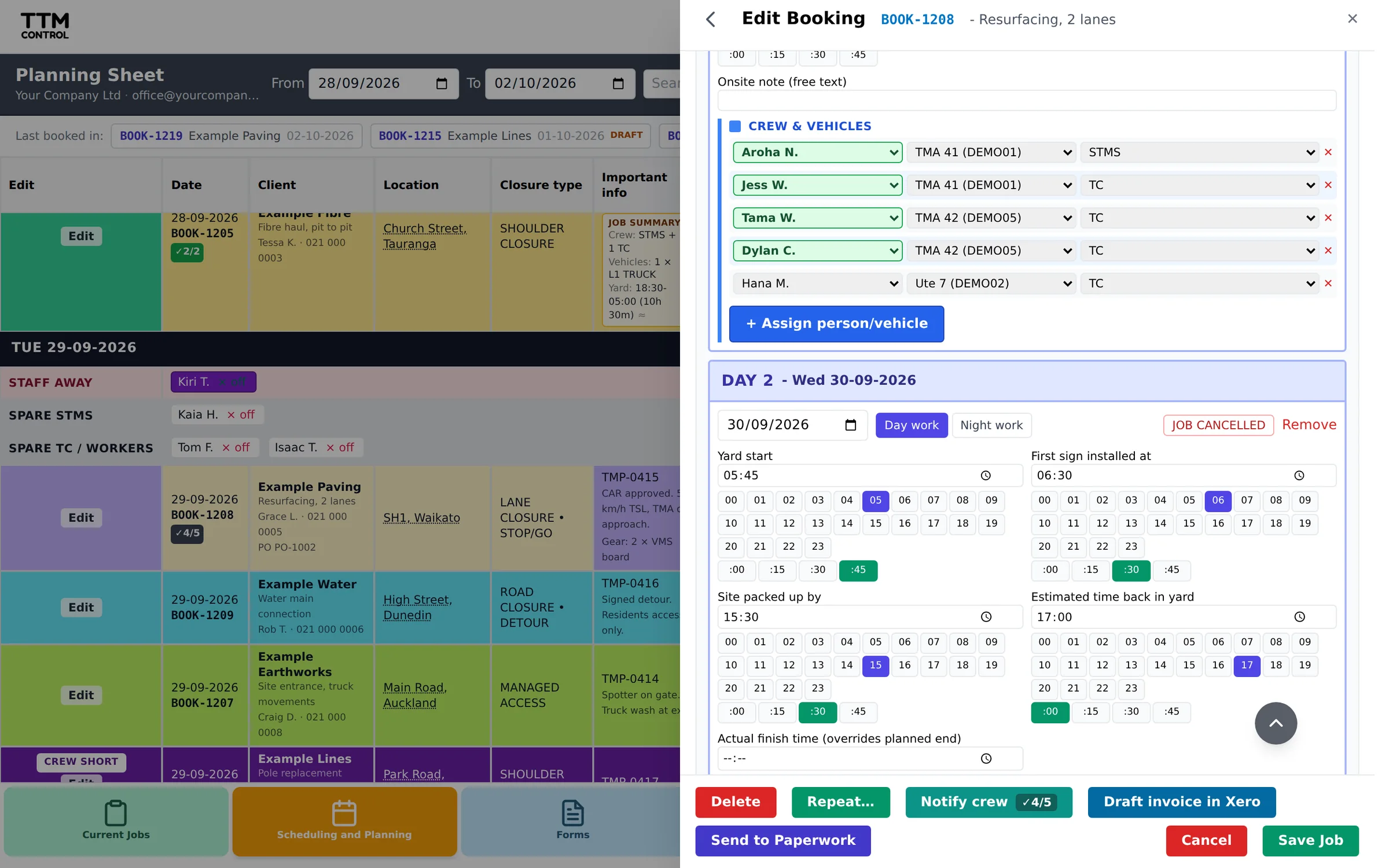
Capture the client, site, dates, closure types, TMP, crew, vehicles and gear on one booking. It stays a draft while you wait on the TMP or the client, then you confirm it and send it to paperwork: the job sheet your STMS picks up on their phone, one per day for multi-day work.
Regular work can be repeated onto other dates without filling the form in again.
Planning sheet
See who is on, spare or away
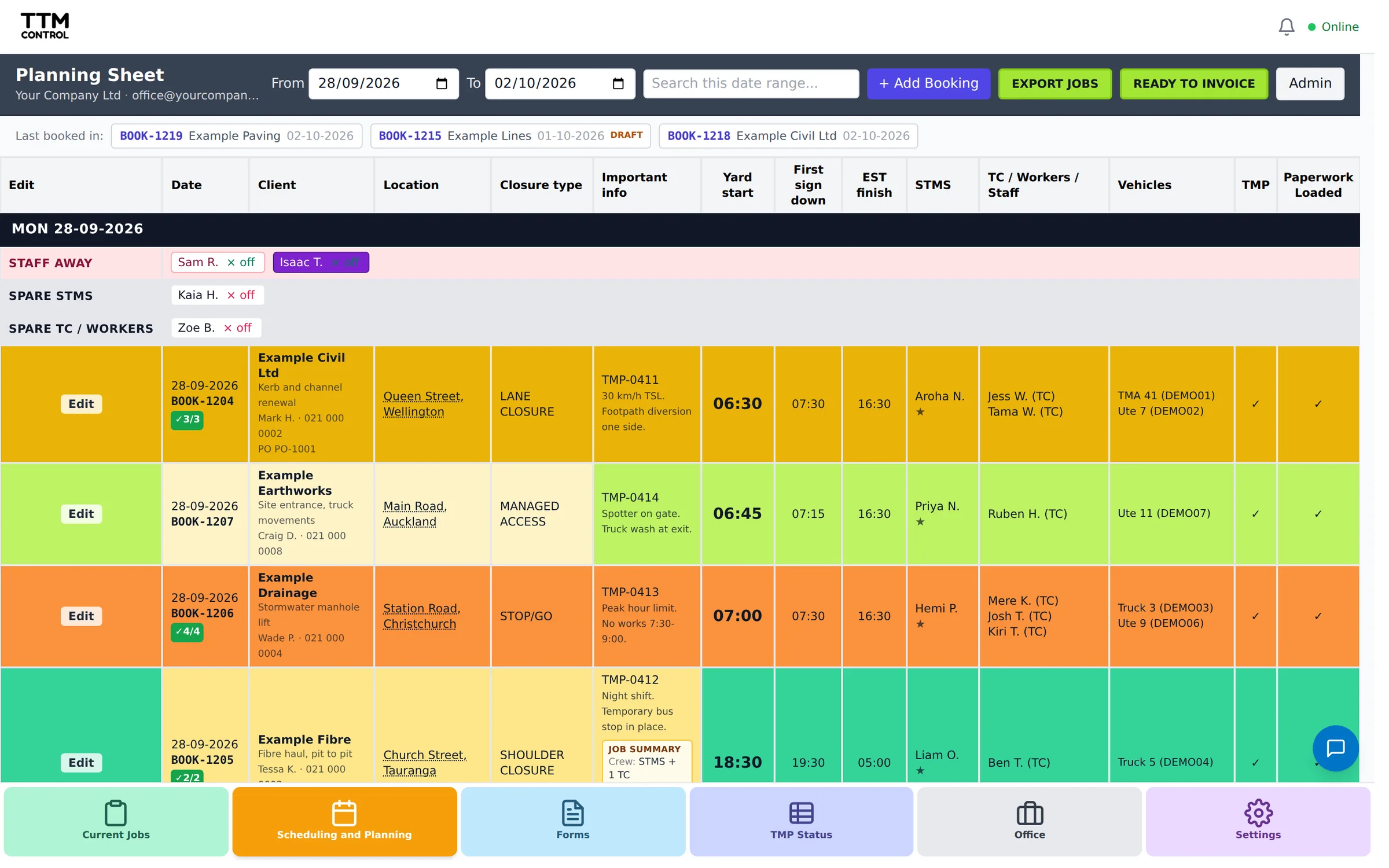
The planning sheet lists every booking day by day with the client, location, closure type, times, STMS, crew, vehicles and TMP. Each day shows who is spare and who is away, and rows change colour as a job moves from booked to on site to invoiced. The sheet exports to Excel.
The crew
Tell the crew, and let them tell you
Press Notify crew on a booking and the people on it get a push notification and an email. Crew see their own upcoming work on their phone, set their availability, and ask for time off in the app; once the office approves it, the planning sheet shows them as away.
Trucks and gear
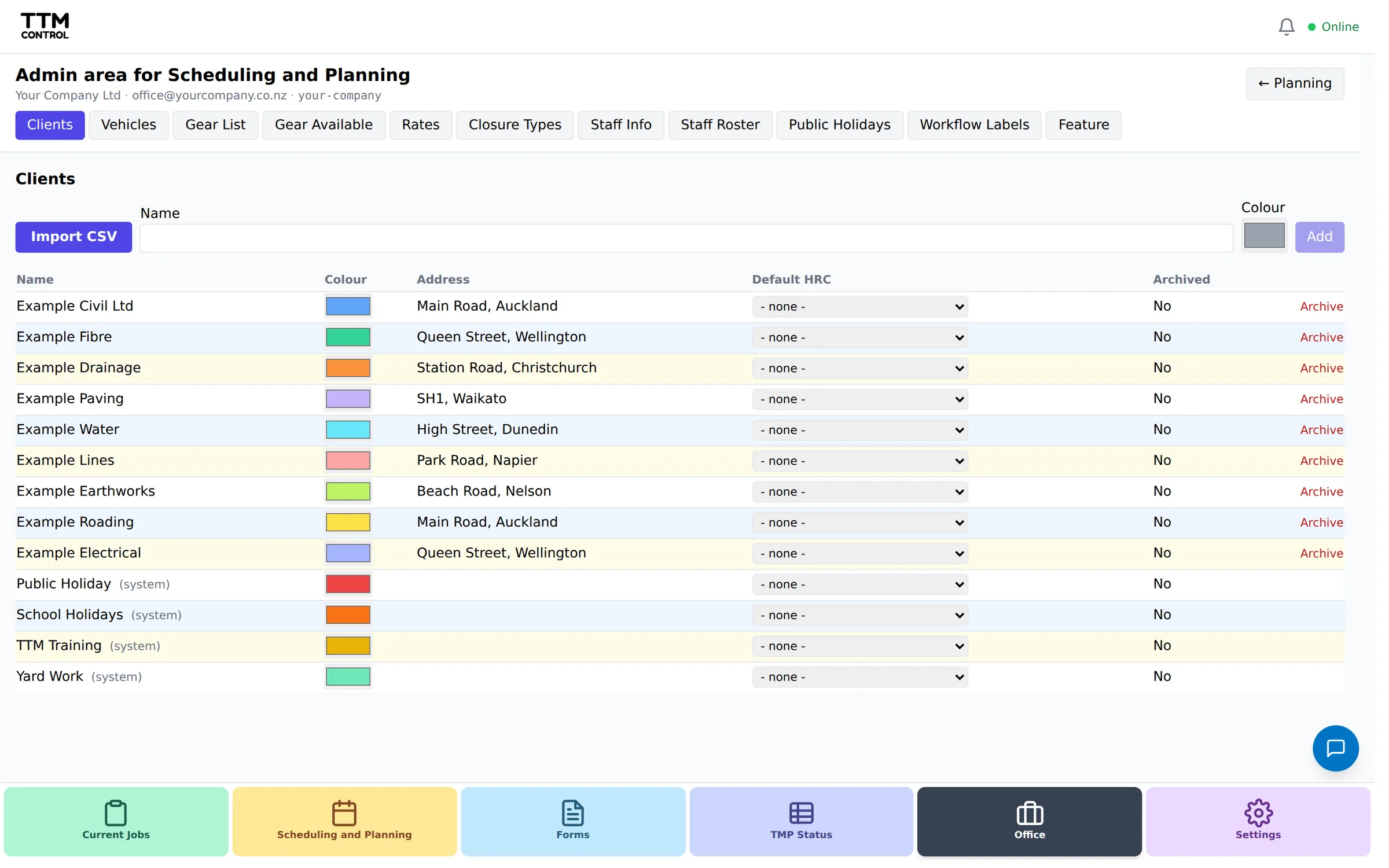
Vehicles and gear that are actually available
The vehicle register tracks rego, WOF or COF, service due and RUC, with a nightly email when something is due in the next three weeks. Completed truck check sheets update the register. The gear list counts what is booked out against what you have for each date.
After the job
From the booking to the invoice
When the paperwork is done the job lands on the Ready to Invoice list, with the hours from site beside the hours you booked. See how invoicing with Xero works.
Scheduling and Planning is switched on per company when you sign up. Enquire for pricing at [email protected].
Start your free trial.
Leave your details and we will get your company set up and help you through your first week.
What happens next
- We set up your company and email you a login.
- Add your staff, vehicles and clients. We send a step by step guide.
- Book your first job and send it to the crew.
Enquire for pricing, or talk to us first: [email protected]